
Blog > How to Fix Slow Printing Issues
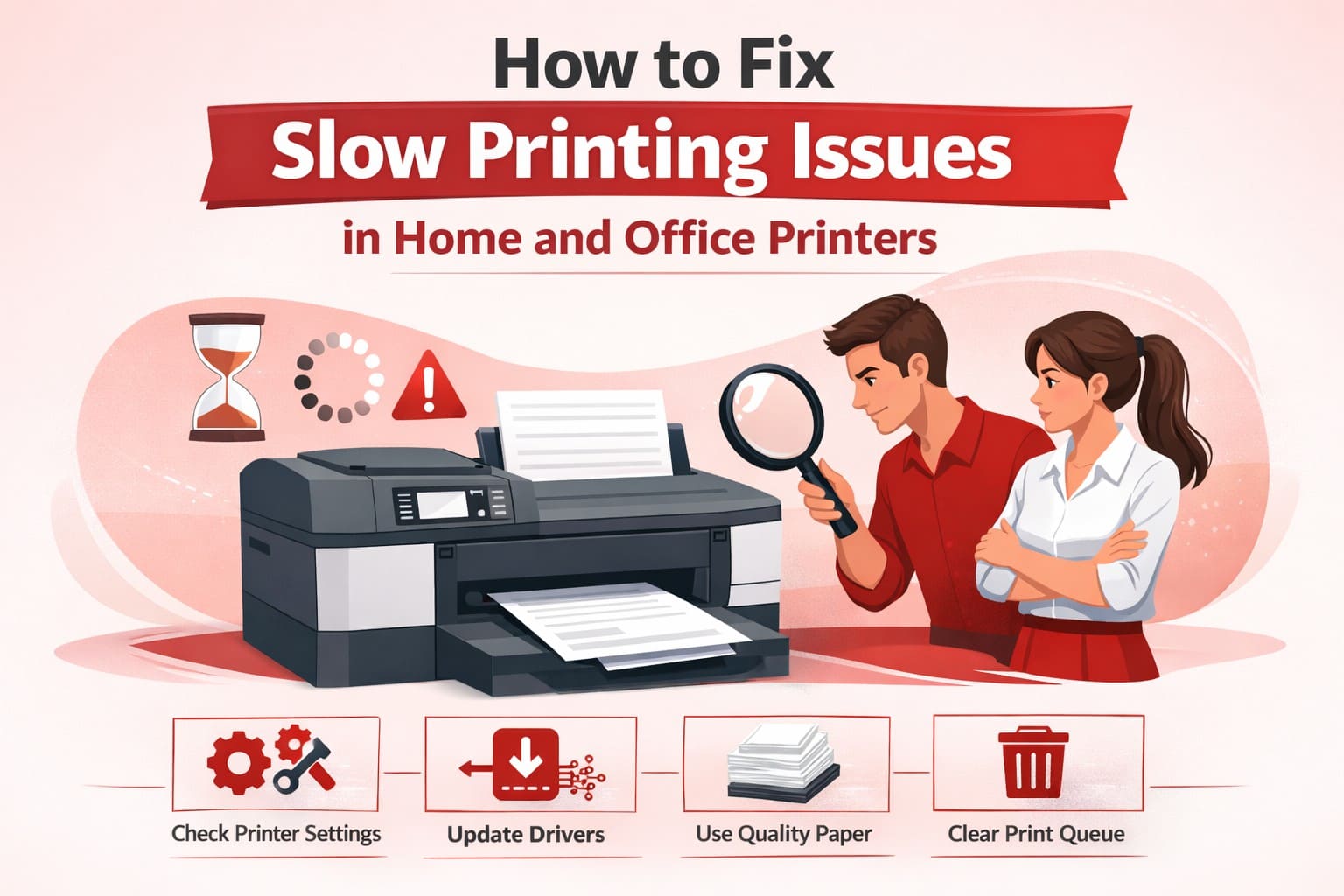
Printing delays can be frustrating—especially when you are working against deadlines. Whether you are printing school assignments at home or handling essential business documents in an office environment, a slow printer can significantly disrupt productivity. While many users assume slow printing means hardware failure, the truth is that most performance issues stem from settings, connectivity, software configuration, or document complexity.
In this comprehensive guide, we explore the most common causes of slow printing and provide practical, effective solutions to restore optimal performance in both home and office environments.
When you send a document to print, your computer processes the file through printer drivers, converts it into printable instructions, and transmits it to the printer. The printer temporarily stores the job in memory and processes it line by line. Any delay in file conversion, network transmission, memory handling, or mechanical operation can slow down output.
One of the most common reasons for slow printing is using high-quality or photo printing modes. These settings increase resolution (DPI), use more ink, and require additional processing time.
For everyday documents, switch to “Standard” or “Draft” mode in your printer properties. This small adjustment can dramatically increase printing speed without sacrificing readability for regular text documents.
Large files containing high-resolution images, embedded fonts, complex graphics, or layered PDFs take longer to process. The printer must interpret and render each element before printing.
To optimize:
• Compress images before printing.
• Convert files to simplified PDF versions.
• Remove unnecessary graphics.
• Print in grayscale if color is not required.
Wireless printers rely on stable Wi-Fi connections. Weak signals, network congestion, or interference from other devices can delay print jobs.
Ensure your printer is within strong router range. Restart your router periodically and confirm the printer is connected to the correct network. For large or frequent jobs, using a wired Ethernet connection may significantly improve performance.
Printer drivers act as translators between your operating system and printer hardware. Outdated or corrupted drivers may cause slow rendering and communication delays.
Visit the official manufacturer website and download the latest compatible drivers for your printer model. After installation, restart your system to ensure proper configuration.
A clogged or paused print queue can prevent new jobs from processing efficiently. If previous documents remain stuck in the queue, subsequent jobs may be delayed.
Open your printer queue settings, cancel unnecessary tasks, and restart the printer. This refresh often resolves processing delays immediately.
Some entry-level printers have limited internal memory. Large or multiple print jobs may exceed available memory, slowing performance.
Print documents in smaller batches when possible. If your printer supports memory upgrades, consider expanding it for office environments handling high volumes.
Many modern printers include Quiet Mode or Power-Saving Mode, which intentionally reduces printing speed to minimize noise or conserve electricity.
Check your printer’s control panel or advanced settings and disable these features if speed is a priority.
Dust buildup, worn rollers, paper debris, or low ink/toner levels can indirectly impact performance. Mechanical resistance or repeated retries during printing can slow output.
Run automatic cleaning cycles, replace low cartridges, clean feed trays, and maintain proper paper alignment. Preventive maintenance ensures smoother operation over time.
If your computer is overloaded with heavy software, system resources may be insufficient for fast document rendering.
Close unused programs, free up memory, and ensure your operating system is updated. Printing performance depends not only on the printer but also on computer efficiency.
If your printer is outdated and consistently slow—even after optimization—it may lack modern processing capabilities. Upgrading to a device designed for higher volume printing can significantly improve workflow efficiency.
✔ Use standard print mode for everyday documents
✔ Keep printer drivers updated
✔ Maintain stable network connectivity
✔ Clean and service your printer regularly
✔ Avoid sending oversized files unnecessarily
✔ Restart printer periodically for performance refresh
Slow printing is rarely caused by serious hardware damage. In most cases, simple configuration adjustments, network optimization, driver updates, and routine maintenance can dramatically improve performance.
By proactively managing your printer settings and system environment, you can ensure consistent, reliable, and efficient printing—whether at home or in a professional office setting.